Why a dedicated email writing app matters
Most email decisions happen when you are not sitting at your desk. You finish a meeting and need to send a follow-up before the details fade. You are between calls and want to respond to a time-sensitive request. You are commuting and want to clear your inbox before arriving at the office. In each of these moments, the barrier to writing a good email is not ability. It is friction.
A browser-based AI tool requires opening Safari or Chrome, navigating to the URL, waiting for the page to load, and then interacting with an interface that was designed for desktop screens but shoehorned into a mobile viewport. By the time you get to the point where you can actually type your email prompt, the moment of motivation has often passed.
A dedicated email writing assistant app removes this friction. One tap opens the app. The interface is designed for your phone screen. Input fields are sized for thumb typing. Generation is fast because the app is optimized for the platform. The difference between 5 seconds to start and 30 seconds to start determines whether you actually write the email or postpone it.
What a good email writing assistant app does
At minimum, a good email writing assistant app does three things well: generates new email drafts from short descriptions, helps compose replies to incoming messages, and adjusts the tone of existing text.
Beyond these basics, useful features include subject line generation, multiple draft variants for the same prompt so you can choose the best option, the ability to specify what should not be included in the draft, and easy sharing or copying to your email client of choice.
The features that sound impressive on an app store listing but rarely matter in practice include: AI-powered inbox management (most people do not want an AI reading all their email), automatic scheduling (most email clients already handle this), and email analytics (useful for marketers but unnecessary for individual email writers).
The best email writing assistant apps are opinionated about simplicity. They make the core workflow, going from idea to polished draft, as fast as possible and resist the temptation to add features that slow down the primary use case.
Mobile email writing vs desktop: different challenges
Mobile email writing faces specific challenges that desktop does not. Screen space limits how much context you can see at once. Typing is slower on a touchscreen keyboard. Editing is more cumbersome without a mouse for precise text selection. Attention is more fragmented because you are likely writing in a transitional moment, not during a focused work session.
These challenges mean that mobile email tools need to be designed differently, not just scaled down from desktop. The prompts should be shorter. The generation should be faster. The editing interface should support quick adjustments rather than deep rewrites. The output should be optimized for sending with minimal changes.
Desktop email writing tools can afford a more complex interface because the user has a full keyboard, a large screen, and typically more time. They can offer advanced features like conversation threading, version history, and detailed customization. Mobile apps that try to replicate this desktop complexity on a small screen create frustration rather than productivity.
The ideal setup for most professionals is a combination: a desktop tool for complex or lengthy email composition and a mobile app for quick drafts, replies, and follow-ups. This matches the tool to the context in which each type of email is typically written.
How to evaluate email writing assistant apps
The most reliable evaluation method is to test the app with your actual email scenarios for at least three days. Day one, use the app for all your email drafting. Day two, switch to a different app or your previous method. Day three, compare the experience and decide which felt more productive.
During testing, pay attention to four things. First, time to usable draft: how many seconds pass between opening the app and having a draft you could send with minor edits? Second, editing effort: how much do you need to change before the draft is ready? Third, coverage: can the app handle the range of emails you actually write, or only simple ones? Fourth, friction points: anything that made you want to go back to your old method.
Avoid evaluating based on a single impressive generation. Every AI tool can produce one great email with a perfect prompt. The question is whether it consistently produces good output across the variety of emails you write daily with the level of prompting effort you are realistically willing to invest.
Free tiers and trials exist for this evaluation process. Use them. Download 2 to 3 apps, test each for a few days with real emails, and choose the one that fits your workflow best.
Privacy considerations for email writing apps
Email writing assistant apps process your text input to generate drafts. Understanding where and how that processing happens is important for privacy-conscious users.
Most AI email apps send your input to cloud-based AI models for processing. This means your email content travels to external servers. For routine professional communication, this is generally acceptable. For highly confidential communication, evaluate whether the risk is appropriate for your situation.
Key questions to answer before using any email writing app: Does the app store your email content, and for how long? Is your input used to train or improve AI models? In which geographic regions does processing occur? What happens to your data if you stop using the service?
FlyMail processes input through the OpenAI API and does not retain email content after generation. The daily usage limit is tracked by anonymous IP counter only. No email content is stored for training, analytics, or any purpose beyond the immediate generation request.
For organizations with compliance requirements, document the data flow of any AI tool you adopt. Include it in your data processing inventory and ensure it aligns with your privacy framework.
The FlyMail app experience
FlyMail is designed as an email-first tool available on iOS, Android, and the web. The app is built for the situations where email writing actually happens: in transition moments throughout the day when you need to draft quickly and accurately.
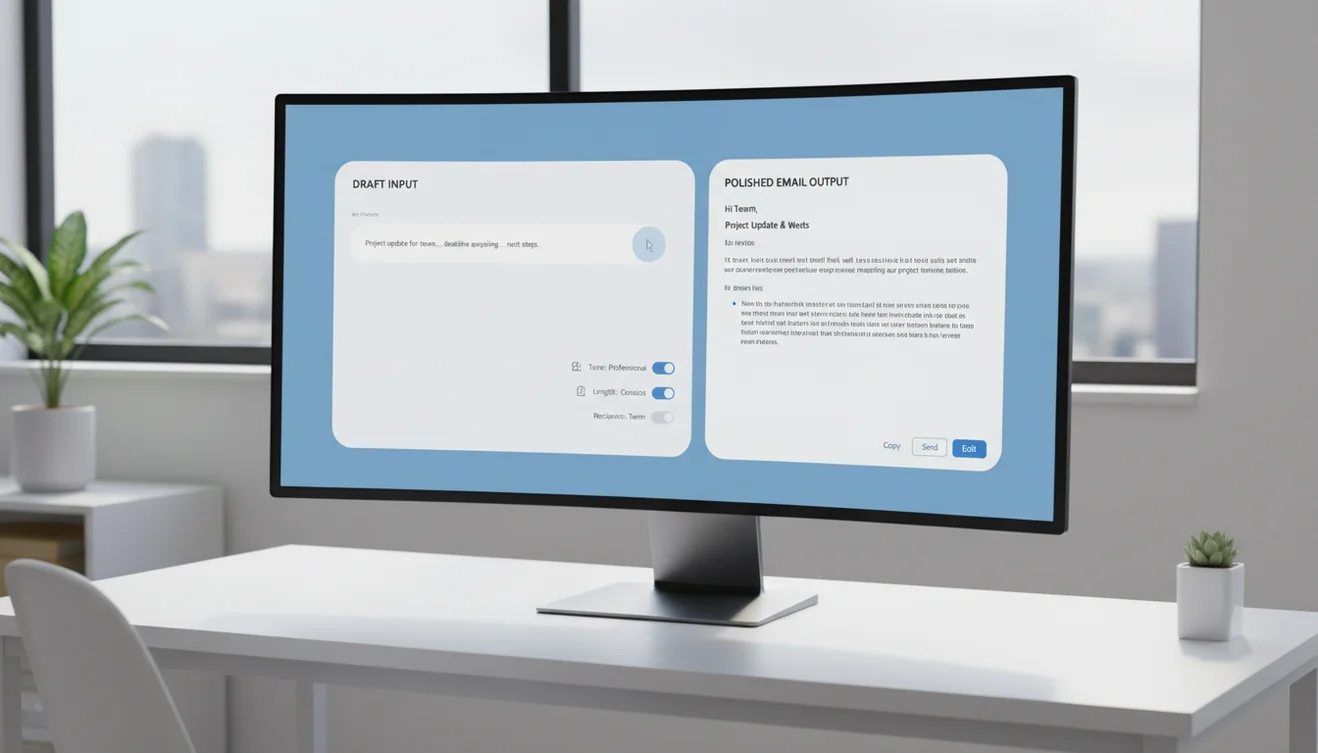
The workflow is straightforward. Open the app, describe what you need to communicate, select a tone, and generate. The draft appears in seconds. Review, adjust any details that need your personal touch, copy to your email client, and send. The entire process takes under two minutes for most emails.
The web tool at flymail.ai offers 3 free generations per day for testing and light usage. The mobile app provides additional generation capacity for users who integrate AI email drafting into their daily workflow.
The design philosophy is intentional simplicity. There are no tutorials, no complex configuration screens, and no feature bloat. The app does one thing, helps you write better emails faster, and it does it with minimal friction. This focus on the core use case means that the app is immediately useful on first launch without any learning curve.
Building an email writing workflow with assistant apps
The most effective approach to email writing assistant apps is to integrate them into your existing workflow rather than replacing it. Use the app for the types of emails where AI provides the most value: routine communication, emotionally difficult messages, and high-volume reply work. Continue writing manually for deeply personal messages, creative outreach, or situations where your unique voice matters more than efficiency.
For mobile, keep the email writing app on your home screen or dock. The convenience of one-tap access determines whether you actually use the tool or default to your old habits. The apps that users stick with long-term are the ones that feel as natural and accessible as opening their email client.
Develop prompt patterns for your most common email types. If you write client updates every Friday, create a mental template for the prompt that includes the standard structure you need. If you send follow-ups after every meeting, have a go-to prompt format that captures the meeting context quickly. These patterns make the tool faster to use over time.
Review the quality of your AI-assisted emails periodically. Are they getting better as you improve your prompts? Are recipients responding differently? Are you spending less time on email overall? This reflection helps you optimize the workflow and decide whether to expand or adjust your use of the tool.